Support › Workflows
Add the right details and logo to your statements
Add your address, payment instructions, bank details and logo to a customer statement, set a currency override and preview it before you send.
- Add your business address, payment instructions and bank details
- Upload your logo so statements are branded as yours, not a generic template
- Set up a currency override with its own bank details, for customers who pay in a different currency
- Choose which fields appear on the statement, on Integrated and Advanced plans
Available on all plans (custom fields Integrated and Advanced only)
How to build your statement
Go to Settings > Statements
This is where you set up everything a statement shows a customer: your details, your branding and, if you need one, a separate currency.
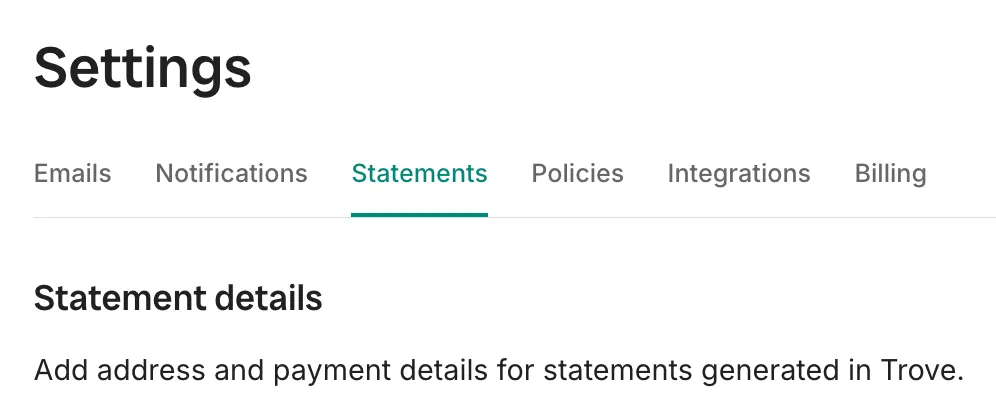
The Statements section under Settings. Add your business details
Address, payment instructions and bank details are optional but using these fields give the customer more clarity on what’s happening.
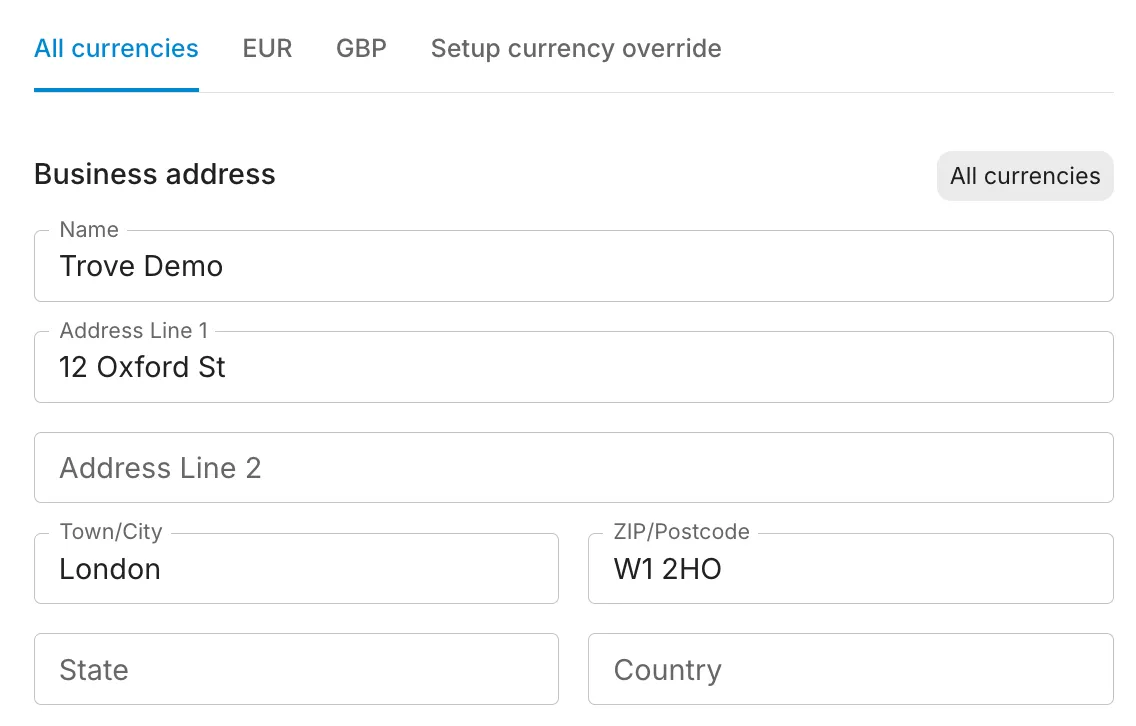
Adding address. Upload a logo
It appears at the top of every statement you send, so customers see your branding rather than a plain template.
Set up a currency override if required
If you invoice some customers in a different currency, they may be also be paying into a different bank account. In this case, add an override for the other currency which has separate bank details. This will be sent to any customers invoiced in that currency.
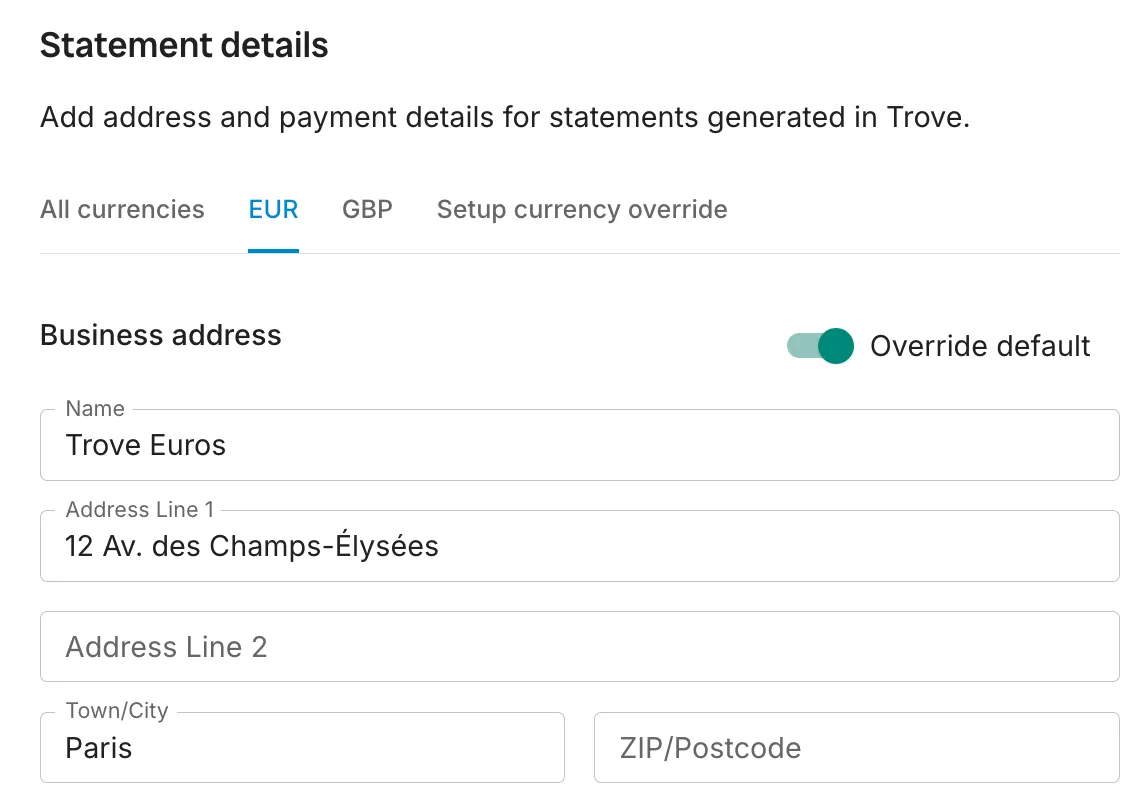
Adding a currency override with separate bank details. Preview your statement
Check the layout, your branding and the fields shown before it reaches a customer.
Customise which fields appear
Integrated and Advanced Plans only
On Essential, statements always show a fixed set of fields: date posted, invoice number, reference, due date, invoice amount, payments and balance. On Integrated and Advanced, you can also add custom fields as required like the invoice line item or account code.
Want statements to go out automatically on a set day each month instead of being sent one at a time? See automatic statements.
What plans include it
Available on all plans (custom fields Integrated and Advanced only)
This feature is part of Trove's core set and is included on all plans.
Choosing which fields appear on a statement, for example adding the invoice line item or account code, is available on Integrated and Advanced plans. Every plan gets the full statement builder: address, payment instructions, bank details, logo and currency overrides.